Our Blog
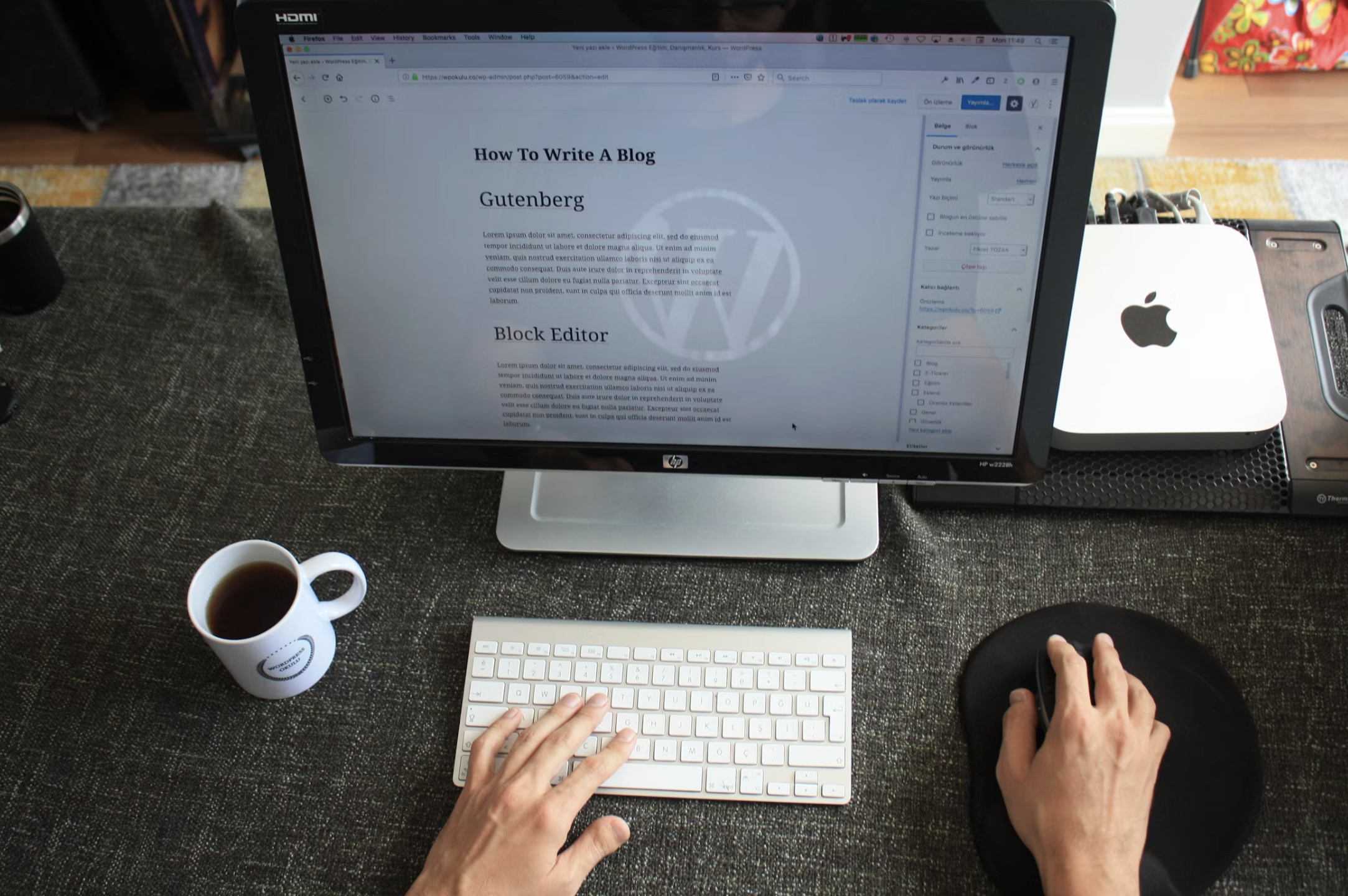
Why Your Freelance Website Needs a Blog (And How to Start One With No Coding)
Most freelancers build a website, publish it, and wait. They wait for Google to notice them. They wait for clients to find them. They wait for the portfolio to do the work on its own. The problem is that a static website doesn't grow it just sits there. If you're using a website builder no coding platform and you haven't started a blog yet, you're leaving your single biggest source of organic traffic completely untapped.
For any remote working professional serious about inbound leads, blogging isn't optional. It's the engine.
Why Blogging Works for Freelancers
Blogs Drive Organic Traffic That Never Stops
Every blog post you publish is a permanent, searchable asset. A post you write today can bring traffic to your site three years from now without any additional effort on your part.
Compare that to social media, where a post disappears from feeds within 24–48 hours. Blogging builds compounding value. Each new post adds another entry point for people searching for what you do.
For a freelancer targeting a specific niche say, "email marketing for SaaS companies" a single well-optimized blog post can rank on the first page of Google and send qualified clients to your site every week indefinitely.
Blogs Build Authority in Your Niche
Clients don't just hire freelancers they hire experts. A blog is the most efficient way to demonstrate that expertise publicly and at scale.
When a prospect visits your website and finds 10 in-depth posts on your specialist topic, they arrive at your contact page already convinced. The blog did the trust-building before you said a word.
This is especially powerful for remote working professionals whose clients may be in different time zones. Your blog works while you sleep.
Blogs Support Every Other Marketing Channel
A blog post isn't just a blog post. It's a LinkedIn article. It's a newsletter issue. It's a Twitter thread. It's a short-form video script.
Every piece of long-form content you create can be repurposed across multiple channels multiplying your reach without multiplying your effort. For a time-pressed freelancer, this is the most efficient content strategy available.
Your MobileFirst-Personal blog page becomes the content hub everything else links back to.
How to Start a Freelance Blog With MobileFirst-Personal
Step 1: Unlock Your Blog Page
Blog functionality is available from the Personal Plan upward on MobileFirst-Personal. Within the same drag-and-drop editor you used to build your portfolio, you can add a blog section, create post templates, and publish directly no separate CMS, no WordPress installation, no plugin conflicts.
Step 2: Pick Three Content Pillars
Don't try to write about everything. Choose three core topics that sit at the intersection of your expertise and your clients' questions. Every post you write fits into one of these three pillars.
For a remote working UX designer, that might be: remote design process, tools and software reviews, and client communication for freelancers. Focused pillars make your blog feel authoritative rather than scattered.
Step 3: Use the AI Assistant for Your First Draft
MobileFirst-Personal's integrated AI assistant can generate blog post drafts from a keyword or topic input. Use it to break through the blank-page barrier generate a structure and opening, then rewrite in your own voice.
This cuts the time to publish your first post from days to hours.
Step 4: Publish Consistently Not Constantly
One well-researched, genuinely useful post per week beats five thin, rushed posts every time. Set a sustainable publishing schedule and protect it.
Start Blogging Before You Feel Ready
The best time to start a freelance blog was the day you launched your website. The second best time is today.
→ Unlock your blog page on MobileFirst-Personal Personal plan starts at $10/month
To add this web app to your homescreen, click on the "Share" icon
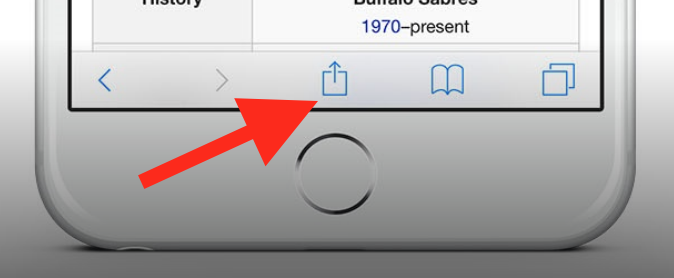
Then click on "Add to Home"
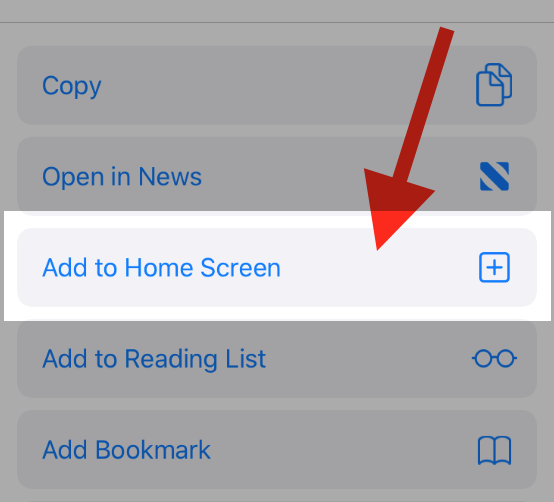
To add this web app to your homescreen, click on the "Share" icon
Then click on "Add to Home"
It looks like your browser doesn't natively support "Add To Homescreen", or you have disabled it (or maybe you have already added this web app to your applications?)
In any case, please check your browser options and information, thanks!
It looks like your browser doesn't natively support "Add To Homescreen", or you have disabled it (or maybe you have already added this web app to your applications?)
In any case, please check your browser options and information, thanks!