Our Blog

How to Build Client Trust Before the First Meeting as a Freelancer
The first meeting with a potential client shouldn't be where you start building trust. By the time that call happens, the decision should already be leaning your way. The most successful freelancer and remote working professionals understand this and they use every digital touchpoint between first contact and first meeting to stack the credibility in their favour. Your digital business card, your website, your portfolio, and your testimonials are all working or not before you say hello.
This post shows you how to make every one of those touchpoints count.
The Touchpoints That Build Trust Before You Meet
Touchpoint 1: The First Link They Click
Before any meeting, a prospect will look you up. They'll Google your name, check your LinkedIn, and if you've shared it click your link. That link needs to go somewhere impressive within two seconds.
A MobileFirst-Personal website loads fast, looks clean on mobile, and immediately communicates professionalism. That first click either confirms their interest or plants a seed of doubt. Make sure it confirms.
Your digital business card is often this first link especially if you shared it in an initial email or LinkedIn message. Make it count.
Touchpoint 2: Your About Page Story
People hire people, not skills. Before a prospect commits to a meeting, they want to know who you are not just what you can do. Your about page is where personality and professionalism meet.
Write in the first person. Be specific about who you help and why. Include a professional photo even a high-quality phone photo in good lighting works. The goal is to feel like a real person, not a corporate bio.
For remote working professionals especially, a warm and genuine about page closes the psychological distance that comes from never meeting face to face.
Touchpoint 3: Work Samples That Answer Their Question
A prospect visiting your portfolio has one question in their mind: "Has this person done something like what I need?" Answer that question as quickly as possible.
Organise your portfolio by type of work or industry rather than chronology. Label each piece with context: what the client needed, what you delivered, what the outcome was. Results-oriented captions transform passive samples into active proof.
MobileFirst-Personal's drag-and-drop editor makes portfolio layout flexible and fast you can reorganise, add, or remove samples in minutes without touching any code.
Touchpoint 4: Testimonials From Real People
A single specific testimonial from a named person at a real company carries more weight than a dozen vague five-star ratings. "Sarah doubled our email open rates in the first month" beats "Great work, highly recommended" every time.
Reach out to past clients and collaborators and ask for a one or two sentence testimonial that speaks to a specific result. Place these testimonials near your service descriptions and CTA buttons where the trust signal matters most.
Touchpoint 5: Response Speed and Professionalism
The window between a prospect's first message and your first reply is itself a trust signal. A fast, clear, professional response even just to confirm you've received their enquiry and will follow up shortly tells them this is someone who communicates well.
Your MobileFirst-Personal contact page can set clear expectations: "I respond to all enquiries within 24 hours on business days." Simple, professional, and reassuring for any freelancer managing asynchronous remote working relationships.
Trust Is Built Before the Meeting Starts
Every touchpoint between first impression and first meeting is an opportunity to close the gap between interest and commitment. Build each one deliberately. Let MobileFirst-Personal host and power every piece of that journey from your digital business card to your full portfolio. Start building client trust before the first hello at MobileFirst-Personal.com
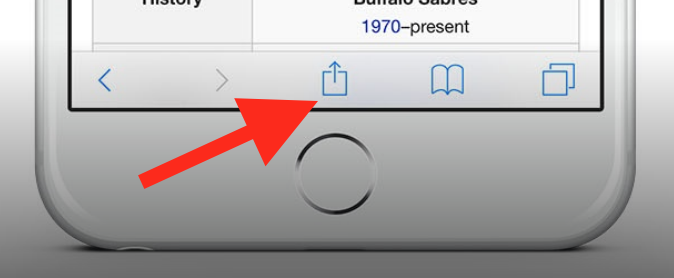
To add this web app to your homescreen, click on the "Share" icon
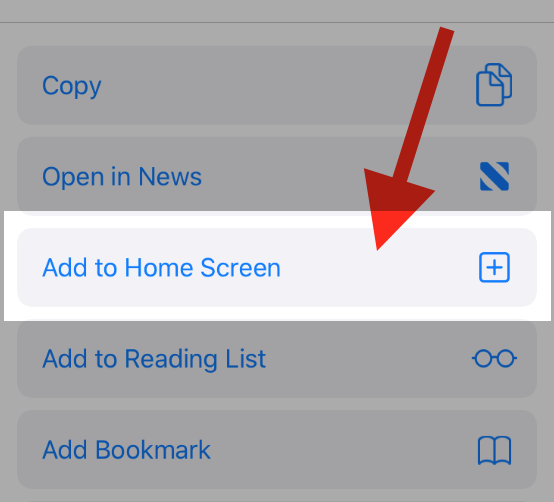
Then click on "Add to Home"
To add this web app to your homescreen, click on the "Share" icon
Then click on "Add to Home"
It looks like your browser doesn't natively support "Add To Homescreen", or you have disabled it (or maybe you have already added this web app to your applications?)
In any case, please check your browser options and information, thanks!
It looks like your browser doesn't natively support "Add To Homescreen", or you have disabled it (or maybe you have already added this web app to your applications?)
In any case, please check your browser options and information, thanks!